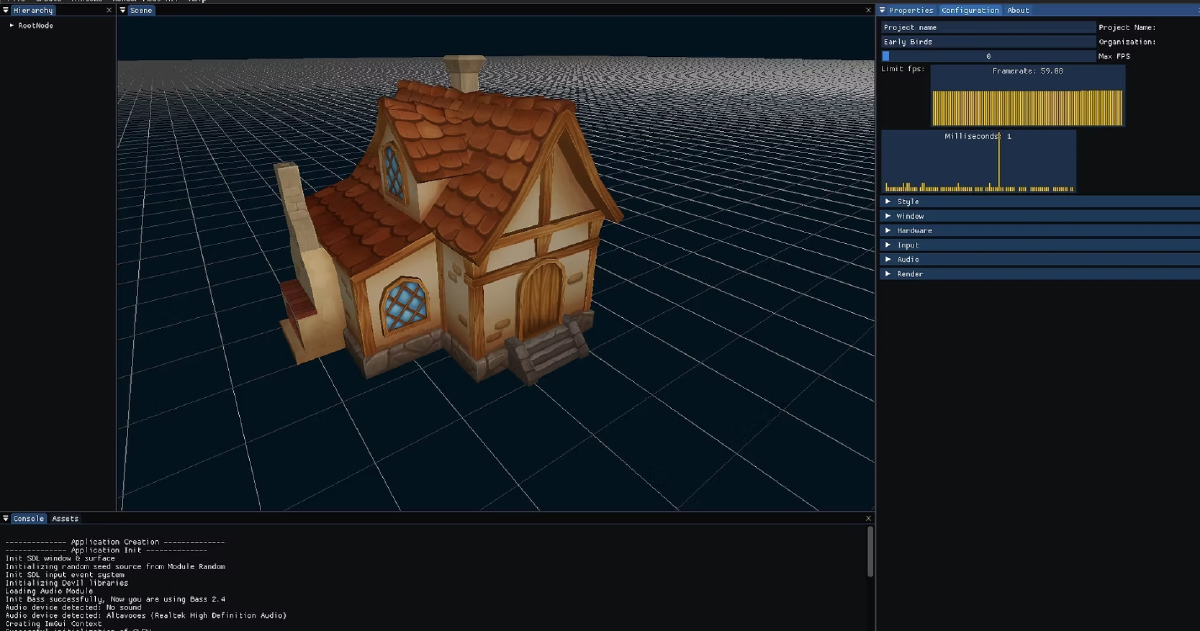
What is Hinata Engine? #
Hinata Engine is a game engine developed for the Game Engines subject in the Videogame Design and Development Degree at UPC.
It was created collaboratively by Jaume Montagut and myself, with the main goal of understanding how a modern game engine works internally.
The engine includes the standard systems you’d expect from a basic editor and runtime:
- Model and texture importing
- GameObject–Component architecture
- Scene saving and loading
- Editor UI based on ImGui
- Basic camera and rendering pipeline
It also features several optimizations such as:
- Octree spatial partitioning
- Frustum Culling
- Skeletal Animation, a full research-driven implementation for the final assignment.
My Individual Contributions #
I was responsible for several core engine systems, including:
Frustum Culling #
- Implemented CPU-side visibility checks based on camera frustum planes.
- Integrated bounding boxes for runtime culling.
- Added debugging view through the “Configuration → Camera3D” panel.
Octree #
- Implemented scene spatial partitioning to improve rendering and picking.
- Added visualization inside the Scene panel.
Scene Serialization #
- Implemented saving and loading of hierarchical scenes using JSON via Parson.
- Drag-and-drop scene loading through the editor UI.
Mouse Picking #
- Implemented ray casting from the camera into the scene.
- Enabled object selection by clicking on meshes.
Skeletal Animation System #
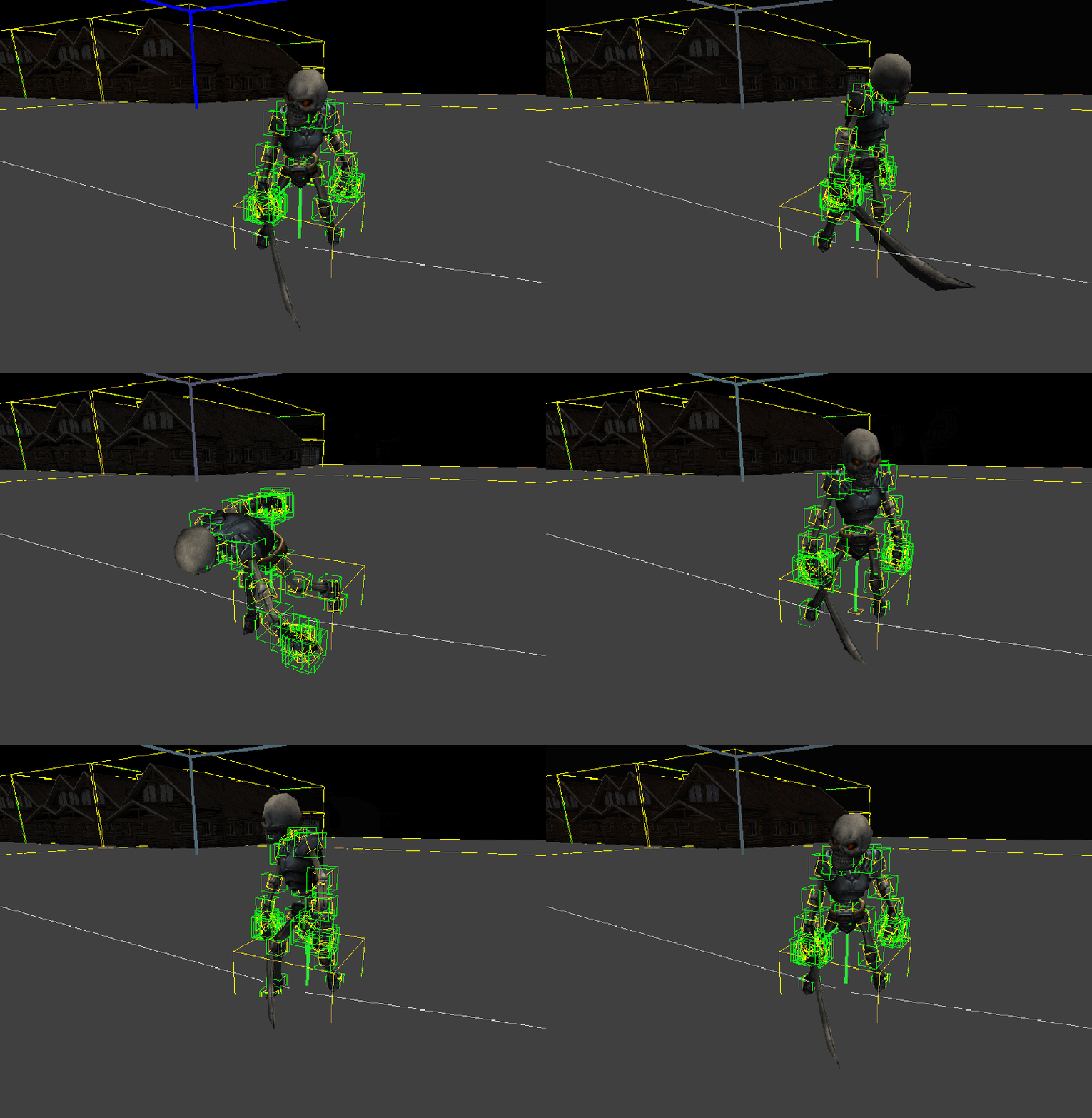
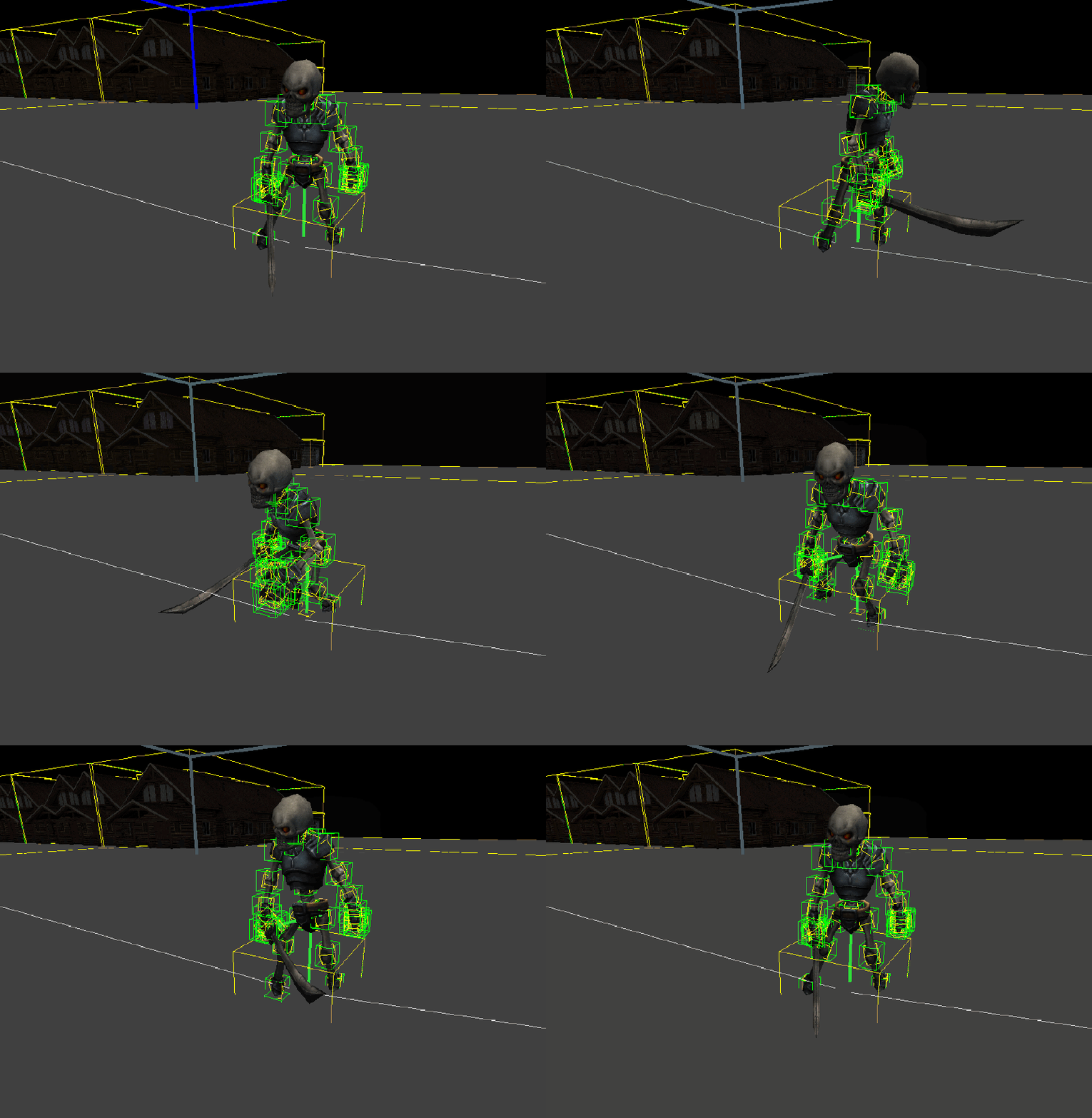
As part of the research assignment, we implemented a complete skeletal animation system:
- Used Assimp to import
.daeand.fbxfiles into our custom format. - Converted imported data into our own engine format.
- Implemented bone animation and mesh skinning.
- Added animation blending between different clips.
- Enabled visualization of the bone hierarchy for debugging.
- Supported manual manipulation of bones when the animator component is disabled.
Engine Features Overview #
Adding Models #
- Drag an
.fbxfile from the Assets panel into the Scene to automatically create the GameObject hierarchy.
Mouse Picking #
- Click on any mesh in the Scene view to select it.
Frustum Culling (Debug) #
- Open Configuration → Camera3D and enable “See frustum culling”.
- Move or rotate the camera to visualize the effect.
Spatial Partitioning #
- The Octree is always visible in the Scene view for debugging.
Time Management #
- Play: run the engine
- Pause: pause and unpause simulation
Resource Management #
- Resource usage statistics visible in the Resources panel.
Scene Serialization #
- Drag a scene file into the Scene view to load it.
- Save scenes via File → Save Scene.
Libraries Used #
- SDL — windowing and input
- Dear ImGui — editor UI
- Glew — OpenGL extension loader
- Parson — JSON parsing
- OpenGL 3 — rendering backend